How to Stream Radio on Smart Speakers
You’re halfway through making tea, the kitchen’s warm, and all you want is a familiar song without tapping through five apps. That is exactly why people ask how to stream radio on smart speakers. When it works well, it feels effortless – just ask, listen, and let the music carry the room.
Smart speakers are brilliant for radio because they remove friction. No cables, no fiddly tuning, no need to keep your phone in your hand. Whether you want upbeat hits while working from home, easy background music in a shop, or a feel-good soundtrack for a Saturday clean-up, the right setup can get you there in seconds.
How to stream radio on smart speakers without the faff
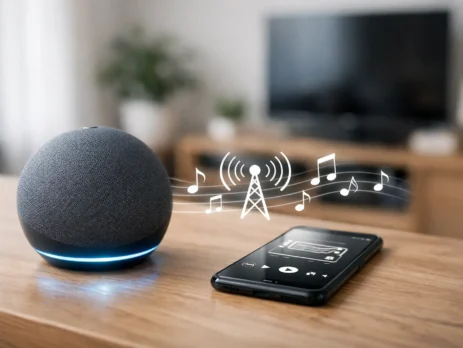
In most cases, streaming radio on a smart speaker comes down to three things: the speaker brand, the radio service or app it supports, and the voice command you use. The basics are similar whether you own an Amazon Echo, a Google Nest speaker, or an Apple HomePod, but each one has its own habits.
First, make sure your speaker is connected to Wi-Fi and set up properly in its companion app. If your smart speaker drops in and out of connection, radio streaming will too. A weak signal in the kitchen or garden room can make live audio buffer, cut off, or refuse to start at all.
Next, check which radio services your speaker uses. Some pull stations through built-in radio directories, while others prefer a specific music or radio platform. This matters because a station might be available on one service and not another, or it may appear under a slightly different name.
Then try a plain voice request. Short and clear usually works best. Ask for the station name first. If that fails, ask for the station name plus the word radio, or mention the app or service if your speaker supports it. You may need one or two tries to find the phrasing your device recognises most reliably.
Using Alexa, Google Assistant and Siri
Amazon Alexa
Alexa is often the easiest starting point for radio listeners because it supports a wide range of stations and services. Once your Echo is online, you can simply ask Alexa to play a station by name. If the station has an official skill or preferred streaming provider, Alexa may use that automatically.
If Alexa plays the wrong station, the issue is usually naming. Similar station names can confuse voice recognition, especially if your request is rushed or there is background noise. Saying the full station name more clearly often fixes it. If not, you can set a preferred radio service in the Alexa app, which helps steer Alexa towards the version you actually want.
Google Assistant
Google Nest and other Google Assistant speakers are also strong for radio, especially if you already use Google Home around the house. Setup happens in the Google Home app, and once done, voice control is simple enough. Ask Google to play the station by name, and it will usually source it through its supported radio partners.
Google tends to be good at understanding natural speech, but it can still guess wrong if a station has a common word in its name. If that happens, be more specific. Adding the word radio, or saying the exact station title, usually improves your chances.
Apple Siri and HomePod
HomePod works best if you’re already in Apple’s world. Streaming radio through Siri can be very smooth, but it is more tied to Apple services than some other smart speaker options. If you use an iPhone and Apple Music already, setup feels tidy and familiar.
The trade-off is flexibility. Some stations are easier to access than others, and depending on the service support, you may need to stream from your phone to the speaker instead of relying entirely on voice commands. It still works well, but it is not always as open-ended as Alexa or Google.
The easiest way to get radio playing
If you want the simplest route, start with the official app setup for your speaker, then test one station with a direct voice command. Don’t overcomplicate it at first. Get one stream playing reliably before you start building routines, groups, or multi-room audio.
Once that first station works, you can make life easier by creating a routine or favourite. That means one morning command can start your speaker, set the volume, and launch your preferred station in one go. For busy households or small workplaces, that little shortcut makes a big difference.
This is where online radio shines. It fits around real life. You can turn up the volume while making breakfast, getting ready for work, or keeping the office atmosphere upbeat without having to babysit the tech.
Common problems when streaming radio on smart speakers
Most radio streaming issues are easy to sort once you know where the friction comes from. Usually, it is not the station itself. It is the connection, the command, or the service your speaker is trying to use.
The speaker says it can’t find the station
This often means the station name is being misheard, or your device is looking in the wrong radio directory. Try the exact station name, then try adding radio to the request. If your speaker supports more than one service, check whether a default service has been selected.
It can also help to test the station in the speaker’s app rather than by voice. If you can find it manually there, you know the issue is command wording rather than availability.
The stream keeps buffering
Buffering usually points to Wi-Fi rather than the speaker itself. Live radio needs a stable connection, and smart speakers placed too far from the router can struggle. Kitchens, extensions, loft rooms and garden offices are common trouble spots.
If the speaker is in a weak signal area, move it temporarily closer to the router and test again. If the stream improves, you’ve found the cause. In that case, better router placement or a mesh system may help more than endlessly resetting the speaker.
The wrong station keeps playing
This is common with stations that have similar names or regional variations. Voice assistants sometimes make an educated guess and stick with it. Speaking more clearly helps, but so does setting favourites and routines once you’ve got the right result.
The volume jumps too high
A smart speaker that starts radio at full blast is not the best soundtrack for a calm morning. Many speaker apps let you set a default or preferred volume. It is worth doing, especially if children use voice commands or if the speaker lives in a bedroom or shared workspace.
How to stream radio on smart speakers in different rooms
One of the biggest perks of smart speakers is multi-room listening. If you’ve got a speaker in the kitchen, lounge and home office, you can often group them together and play the same station throughout the house.
This works particularly well for music-led radio because the mood stays consistent as you move around. It is ideal for weekends, parties, or simply making everyday chores less dull. The catch is that not every platform handles multi-room audio in exactly the same way, and older speakers can drift out of sync.
If you hear an echo between rooms, check that all speakers are on the same network and updated. Grouping speakers from the same ecosystem is usually more reliable than mixing brands.
Choosing the best smart speaker for radio
If radio is your main priority, the best speaker is not always the most expensive one. What matters more is dependable voice recognition, decent sound for speech and music, and broad support for radio services.
Alexa speakers are often the most flexible for regular radio listeners. Google speakers are a strong all-rounder, especially if your home already runs on Google. Apple HomePod suits listeners who value sound quality and already use Apple services, but it can be less forgiving if you want wider radio compatibility.
Sound also depends on where the speaker lives. A compact speaker is fine for a bedside table or kitchen counter. For a bigger room, or a small business setting where you want a fuller sound, stepping up to a more powerful model is worth it.
And if your goal is simple, upbeat listening with more music and less chatter, online radio stations are often a better fit than endlessly skipping tracks on a playlist. A good station gives you momentum without making you do the work.
A few simple habits make it better
Keep your speaker software updated, use clear station names, and save favourites once you find what works. If several people in the house use the same speaker, agree on a few go-to commands so everyone gets the same result.
It is also worth thinking about where and when you listen. A kitchen speaker might need stronger voice pickup over clattering pans. A work desk speaker might need lower default volume and more reliable Wi-Fi. Small changes like that make the whole experience feel easier.
For listeners who just want non-stop hits without overthinking the tech, that is the real win. Get the setup right once, and your smart speaker becomes a one-line route to a better mood. If you can ask for the music you love and hear it instantly, you’re already doing it right.